Agent files a background task for the team
What for: this guide helps you teach the agent to create a task for people without stopping the customer dialog.
Problems it solves: a callback or stock check needs the team, but the customer should not wait on the line.
Result: the agent replies immediately while a background task appears in the Customer Support queue.
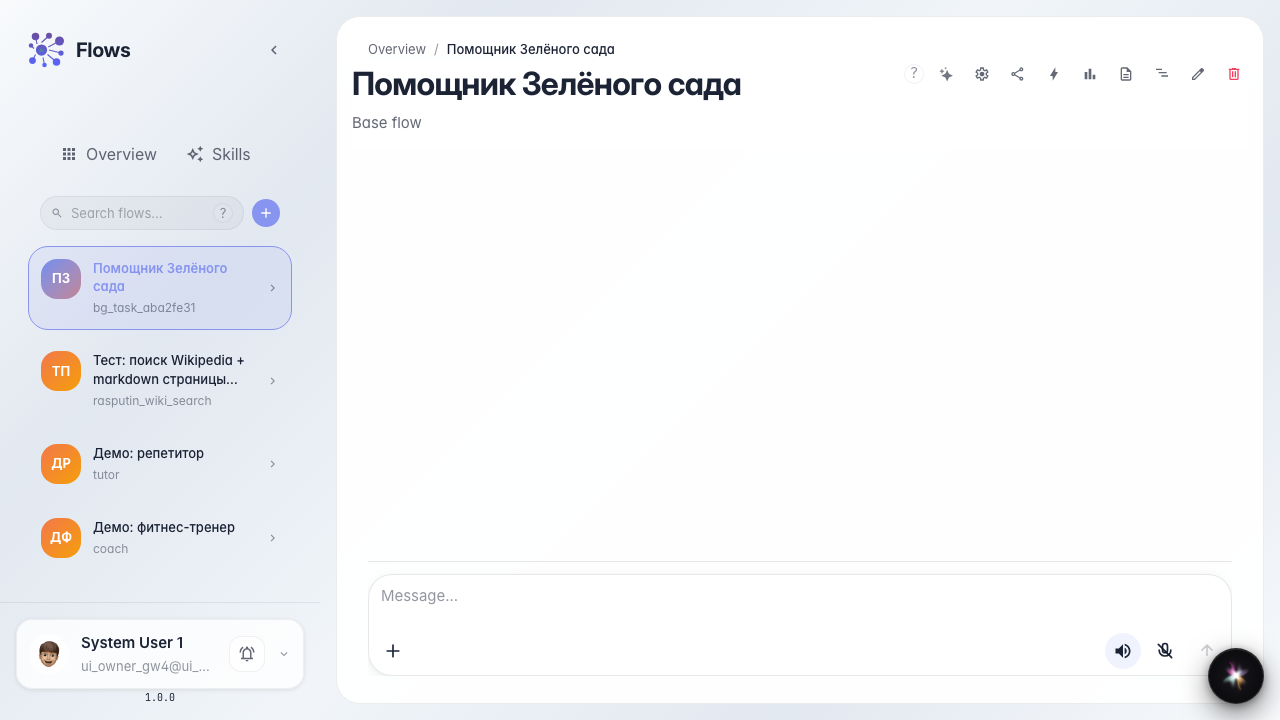
Step 1. Open the agent chat with background tasks
Open the agent chat that has a non-blocking task creation tool. This lets the agent assign a callback or stock check to the team and keep talking to the customer right away.
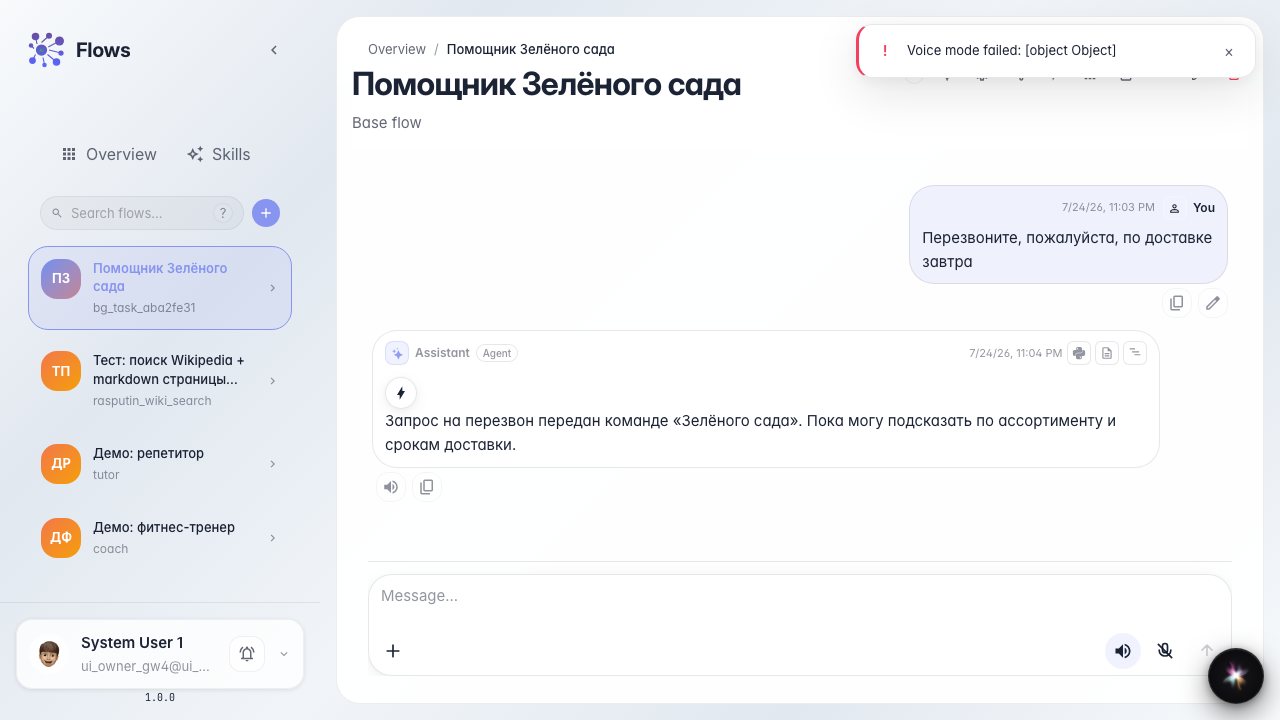
Step 2. Request a callback and get an instant reply
Ask for a callback. The agent replies immediately, without a waiting banner, and says the request was passed to the team. The customer dialog is not interrupted.
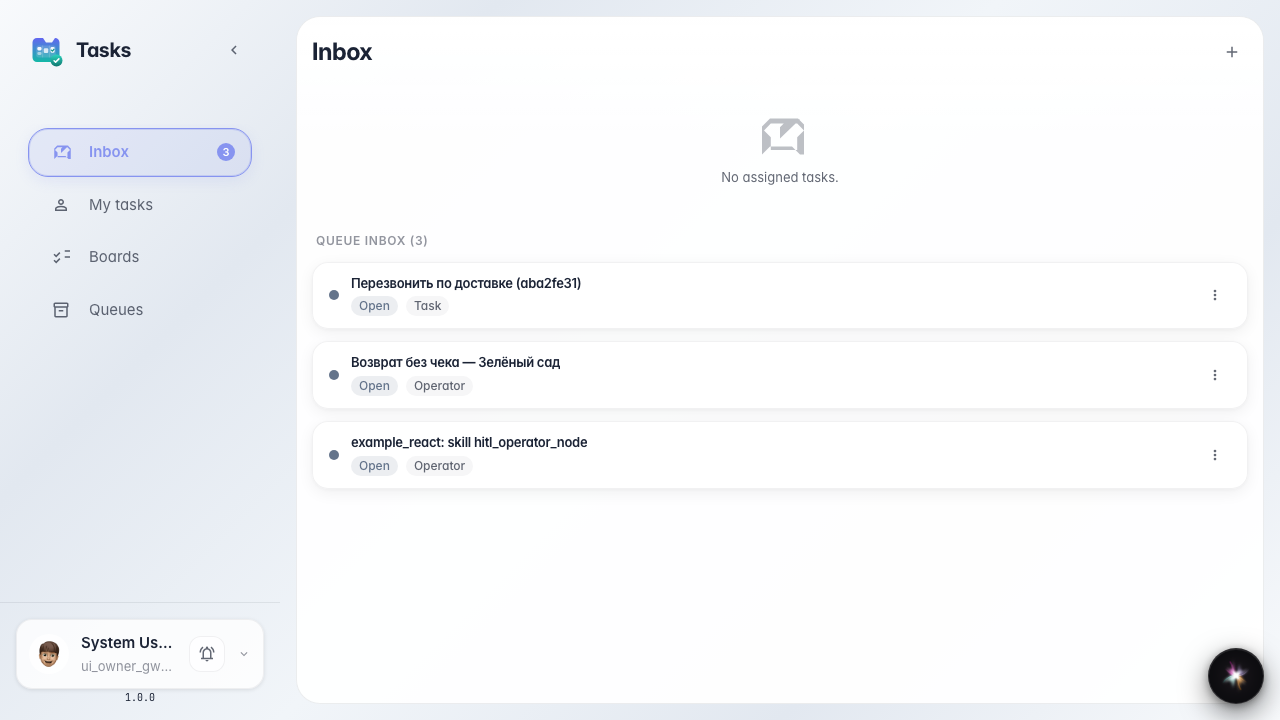
Step 3. Open the team task inbox
Open inbox in the tasks section. The new callback assignment should appear — the agent created it without stopping the customer chat.
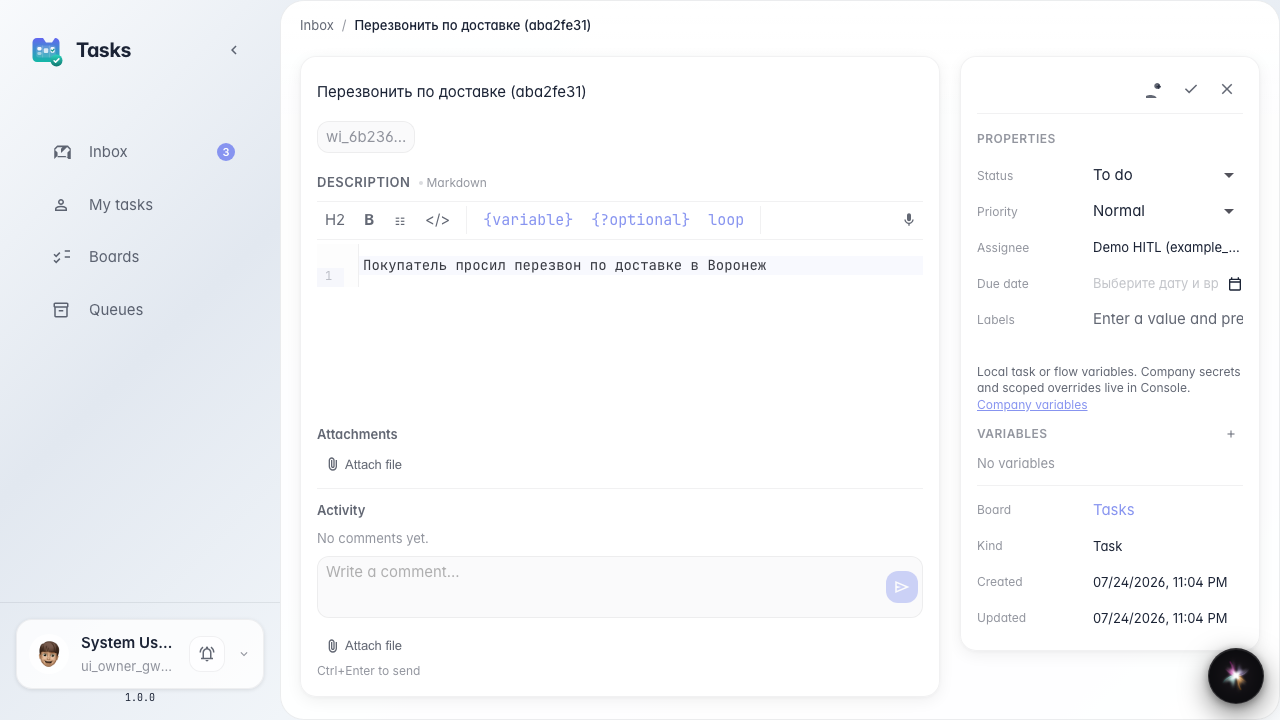
Step 4. Open the background task card
Result demonstration. The task card is open — title, Customer Support queue, and callback description are visible even though the agent chat already continued with the customer.
Summary. You can now tell a background task from an HITL pause: the customer does not wait, and the team gets the assignment in the queue.