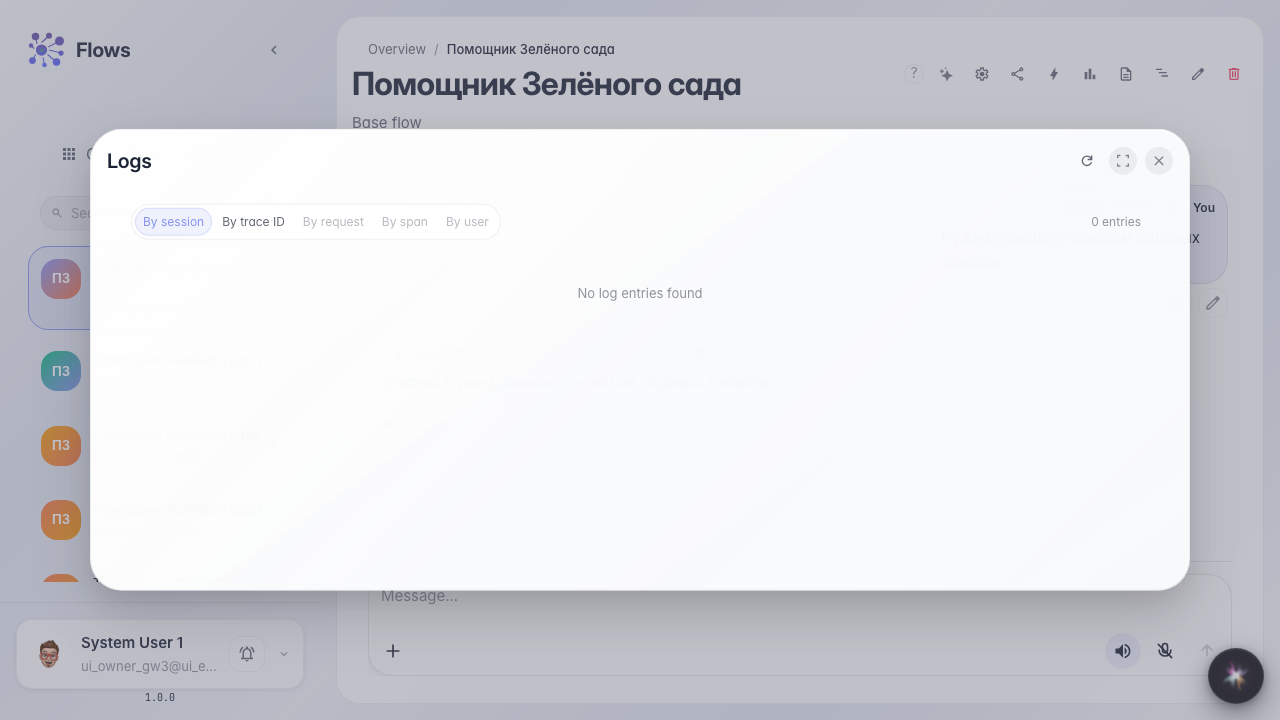
Inspect traces and logs
What for: this guide helps you find why an agent reply was wrong after a run.
Problems it solves: after a dialog it is unclear which step went wrong and what the system logged.
Result: the trace and logs for the last Green Garden Assistant reply are open.
Step 1. Open the agent chat
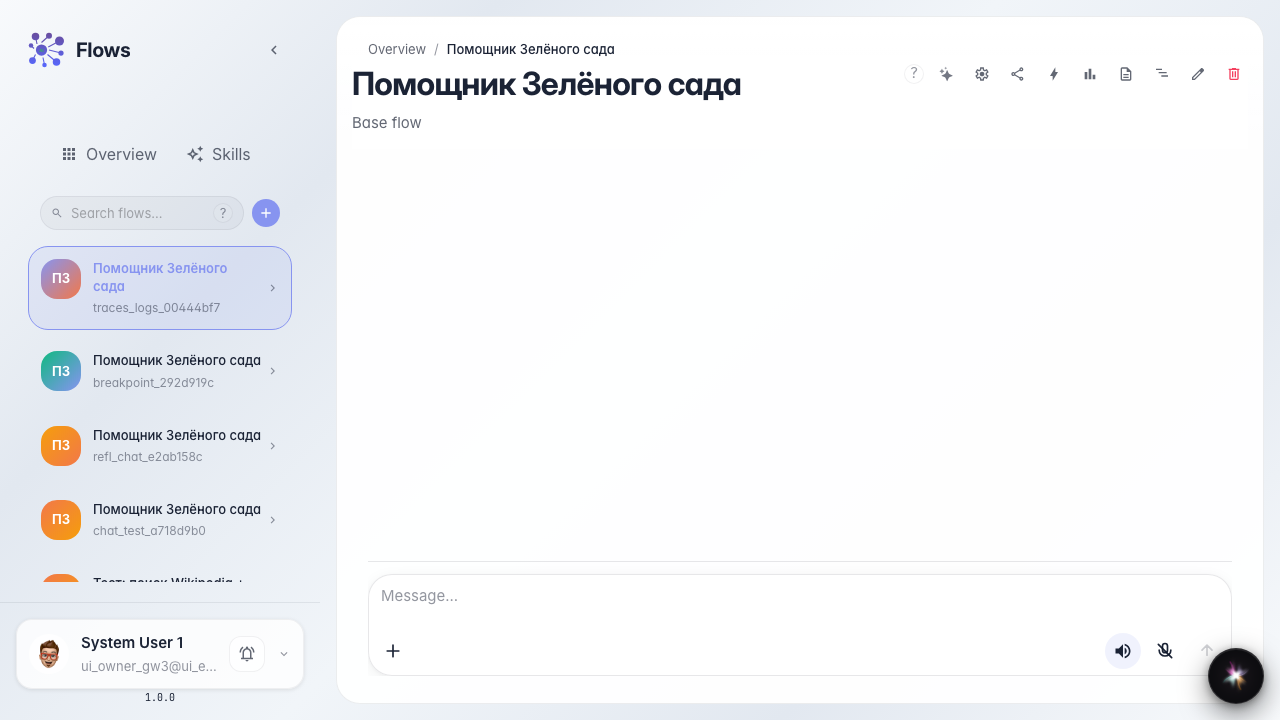
Open the Green Garden Assistant chat. After each reply, trace and log buttons are available under the message.
Step 2. Run the dialog and wait for the reply
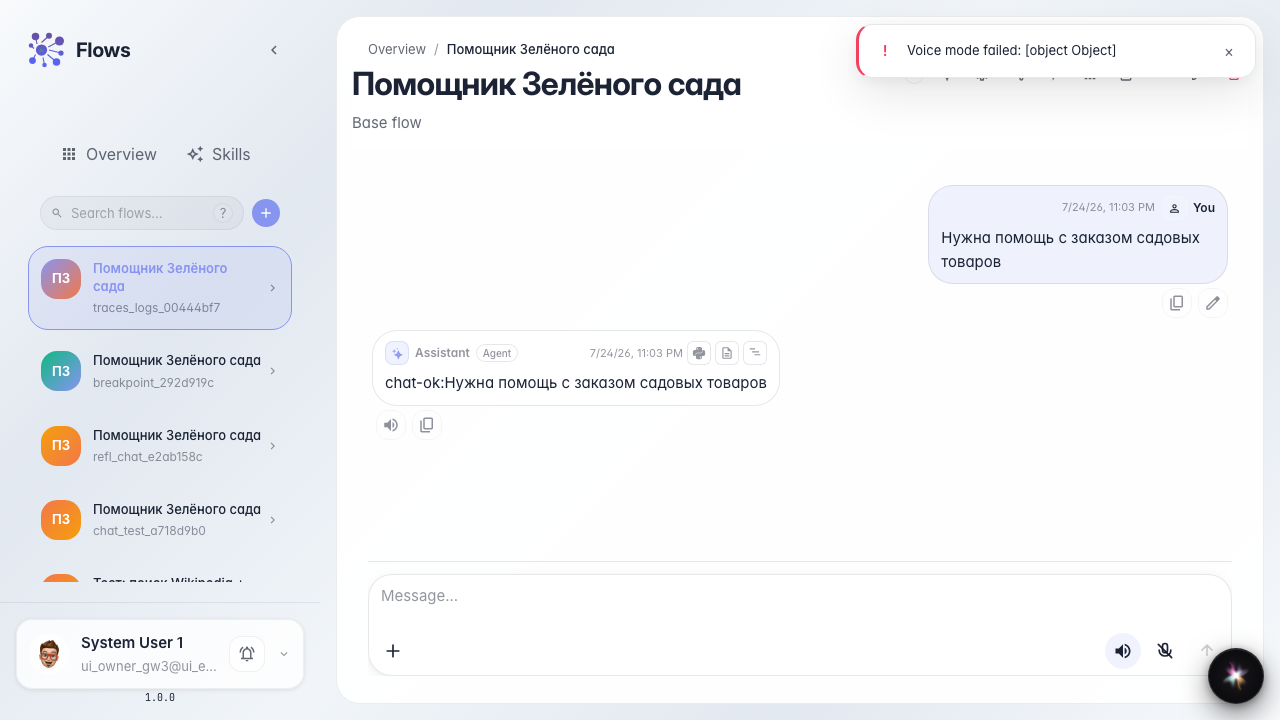
Send a customer question and wait for the reply. Each answer can be inspected with traces and logs.
Step 3. Open the last reply trace
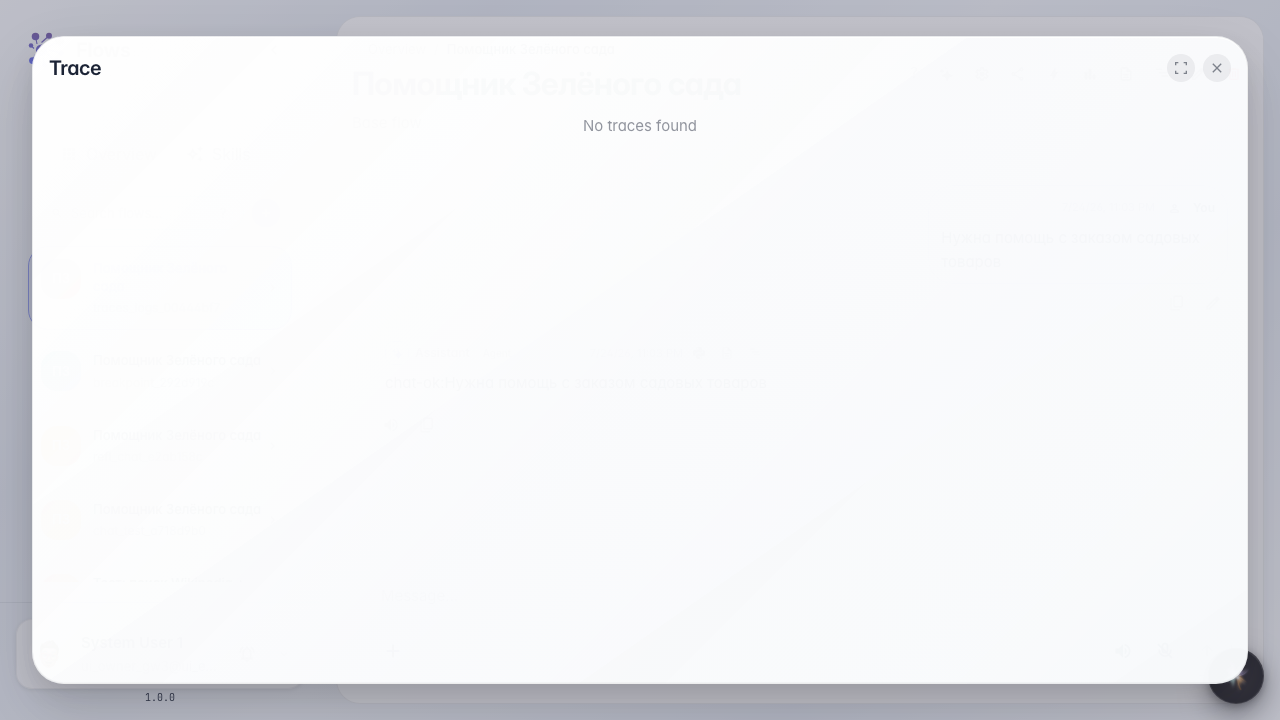
Under the agent reply, click the trace icon. A step tree opens showing which blocks ran and how long each step took.
Step 4. Open logs for the same reply
Result demonstration. Click the logs icon next to the same reply — the system log for that run opens. Traces and logs together show what happened inside the agent.
Summary. You can now analyze Green Garden replies using traces and logs after each dialog.