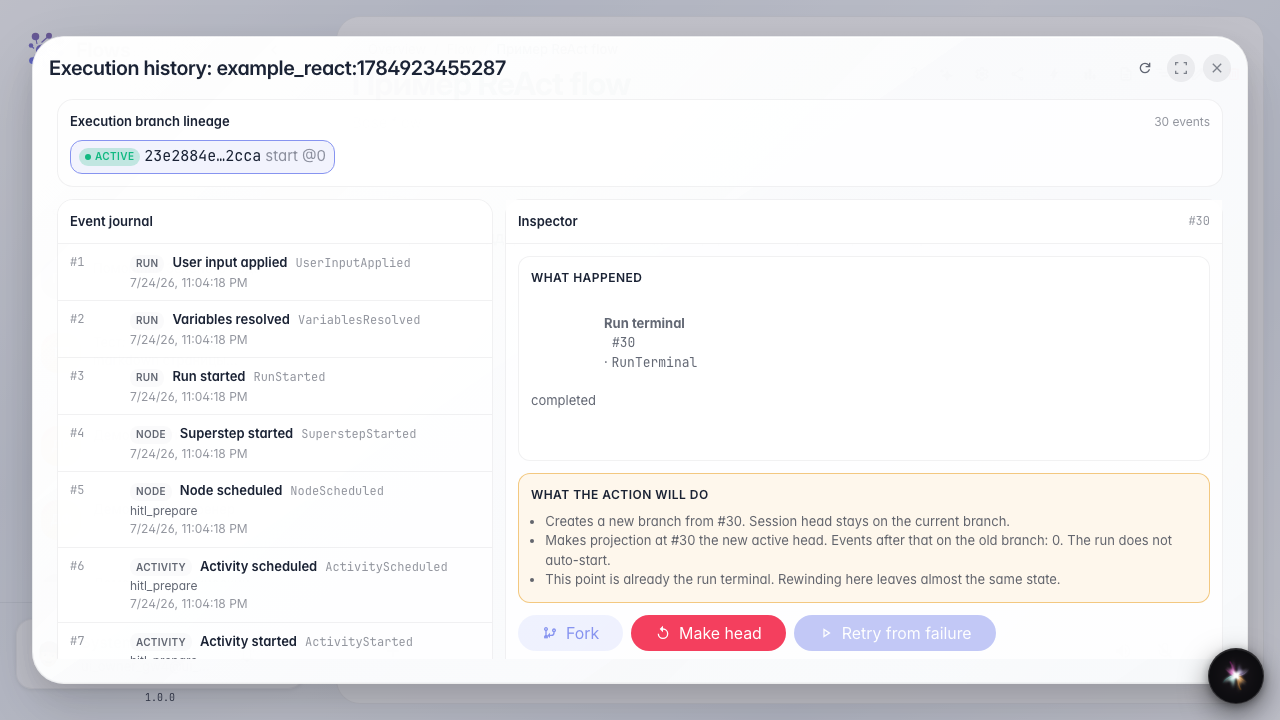
See the operator handoff in the run history
What for: this guide helps you review after a run where the agent handed the dialog to an operator and when it resumed.
Problems it solves: a single chat view does not show when and to which queue the task was sent.
Result: the run history shows handoff and resume events after the operator replied.
Step 1. Open the dialog run history
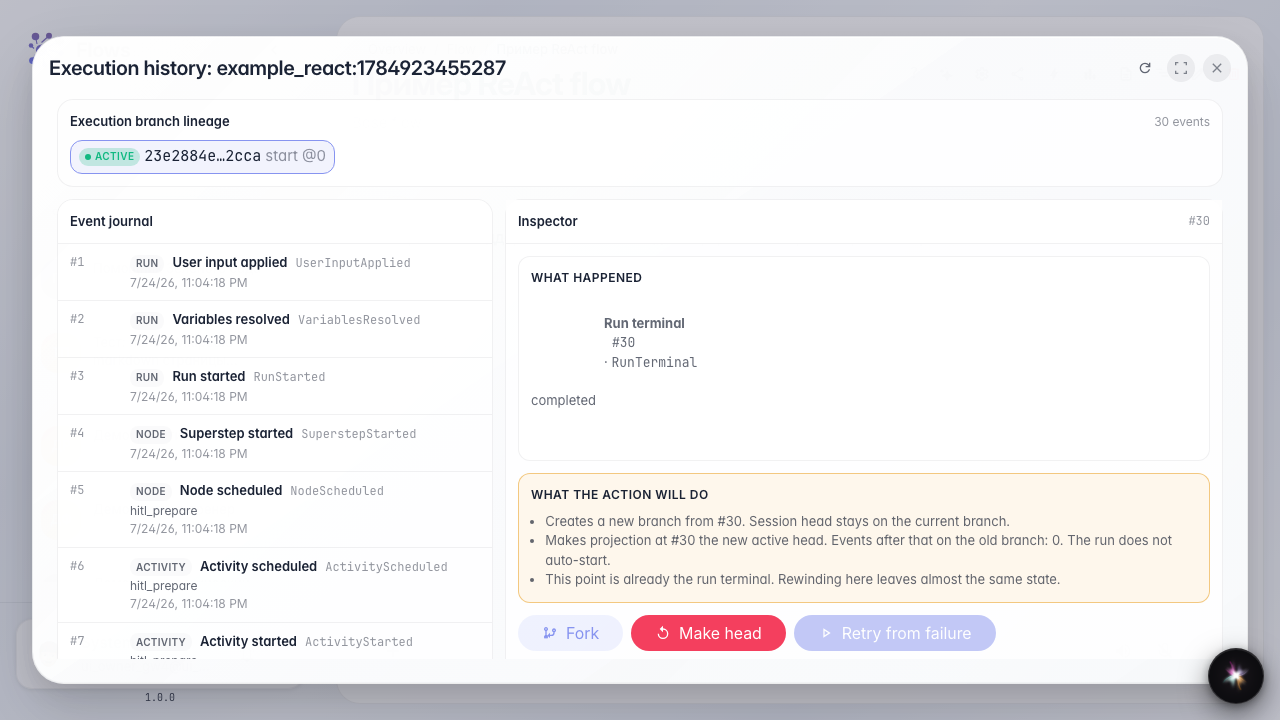
In chat, open run history; it is the log of all agent steps: nodes, tools, operator handoffs, and resumes.
Step 2. Find the operator handoff event
In the event list, find HandoffRequested; that is when the agent handed the dialog to the Customer Support queue and created an operator task.
Step 3. Find the resume event after the reply
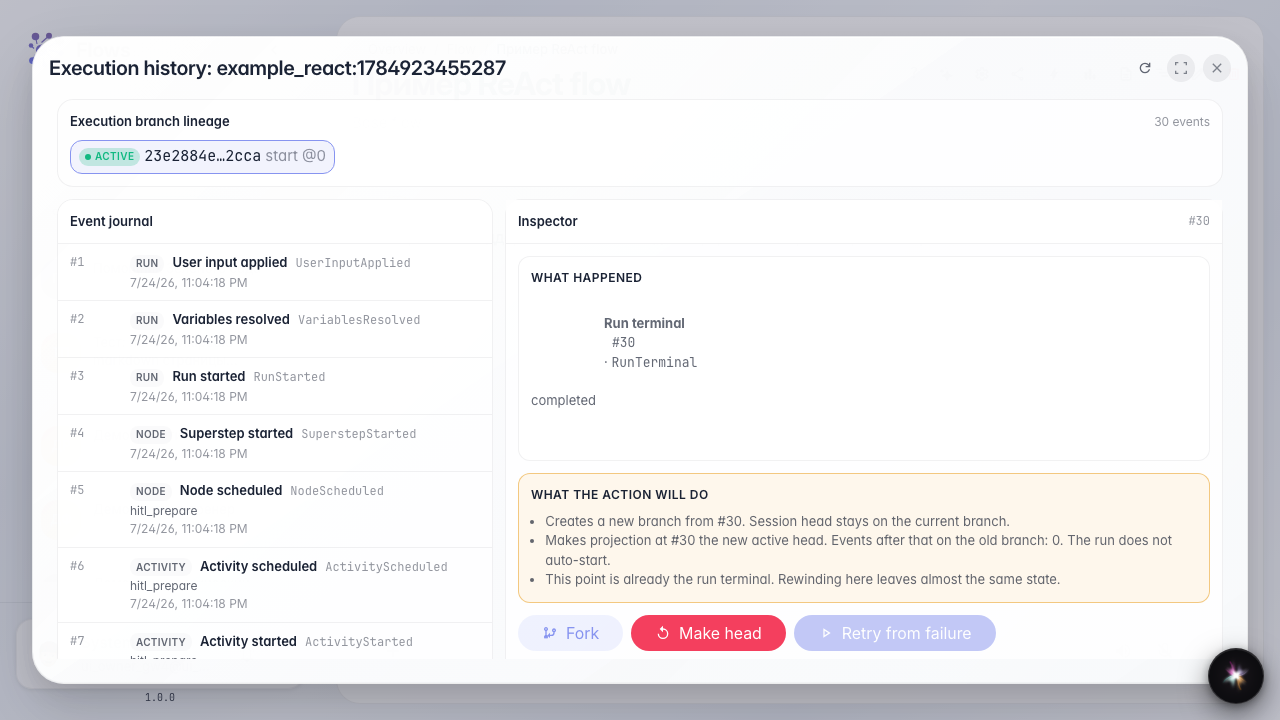
Scroll the list to HandoffResumed — that is when the operator replied and control returned to the agent.
Step 4. Review the handoff and resume chain
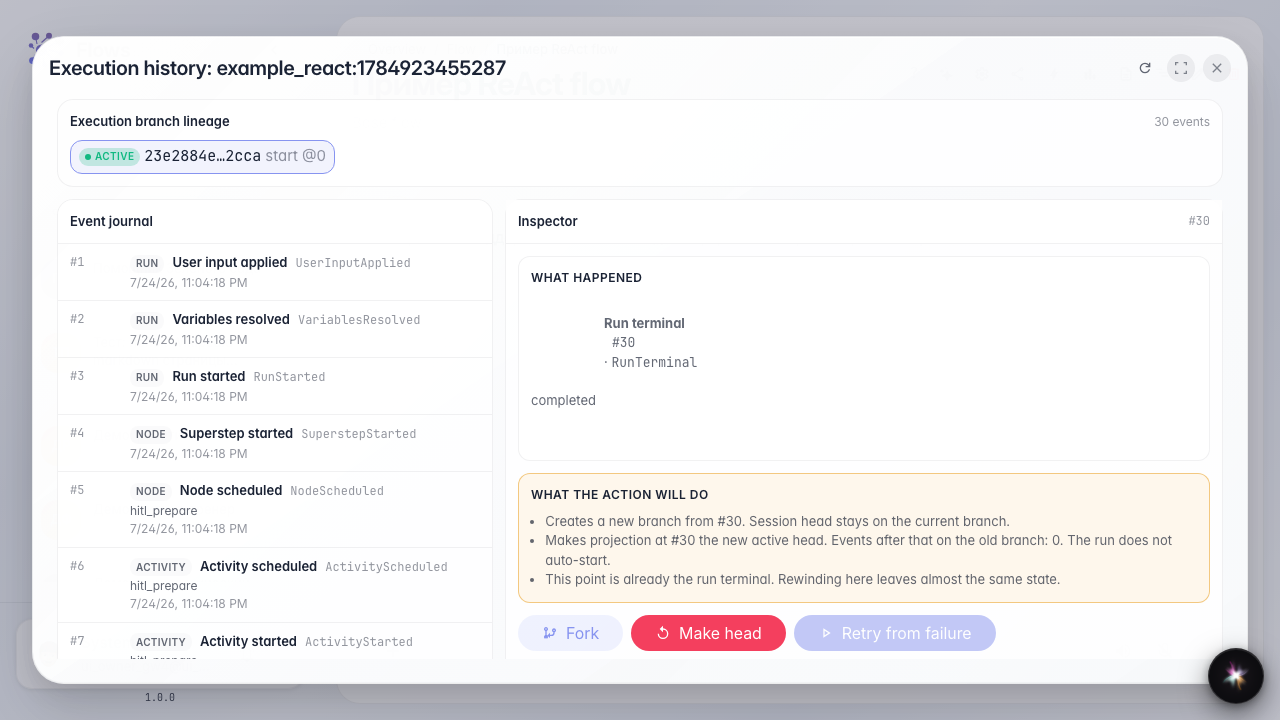
Result demonstration. HandoffRequested and HandoffResumed appear in one list — the full picture of human handoff and dialog resume.
Summary. You can now read run history and find operator handoff and dialog resume events.