Debug the agent step by step
What for: this guide helps you pause the agent at a specific step and see what happens inside.
Problems it solves: when a reply is wrong, it is unclear which graph step went off track.
Result: execution paused at a breakpoint and the agent finished the dialog after you continued.
Step 1. Set a breakpoint on the block
In the Green Garden Assistant editor, enable a breakpoint on the answer block. On the next run, execution stops here so you can inspect the state.

Step 2. Switch to run mode
Choose Run mode in the editor header. A chat panel opens on the right for a test dialog with breakpoints.
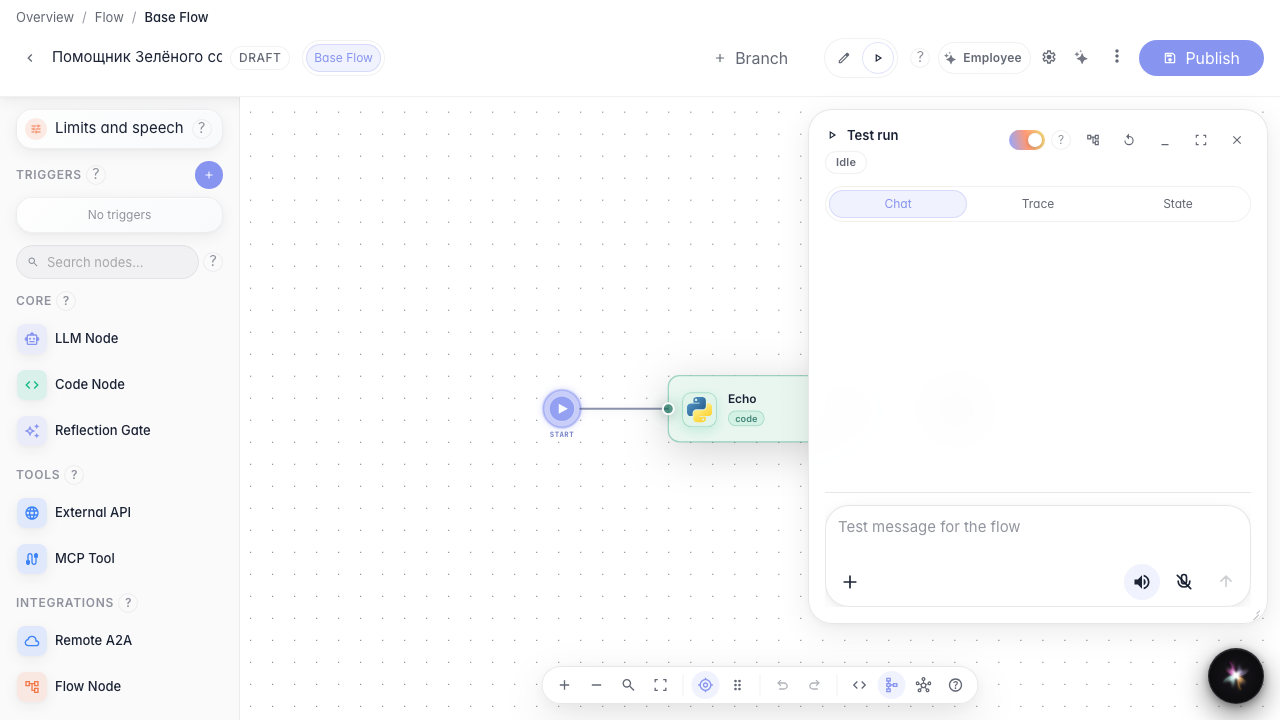
Step 3. Wait for the breakpoint to hit
Send a test message. Execution stops at the breakpoint block — the block is highlighted on the canvas and a Continue button appears in the chat.

Step 4. Continue execution and verify the reply
Result demonstration. Click Continue — the agent finishes the step and returns a reply in the run chat. You are controlling execution step by step.
Summary. You can now set breakpoints and debug the Green Garden agent directly in the editor.
