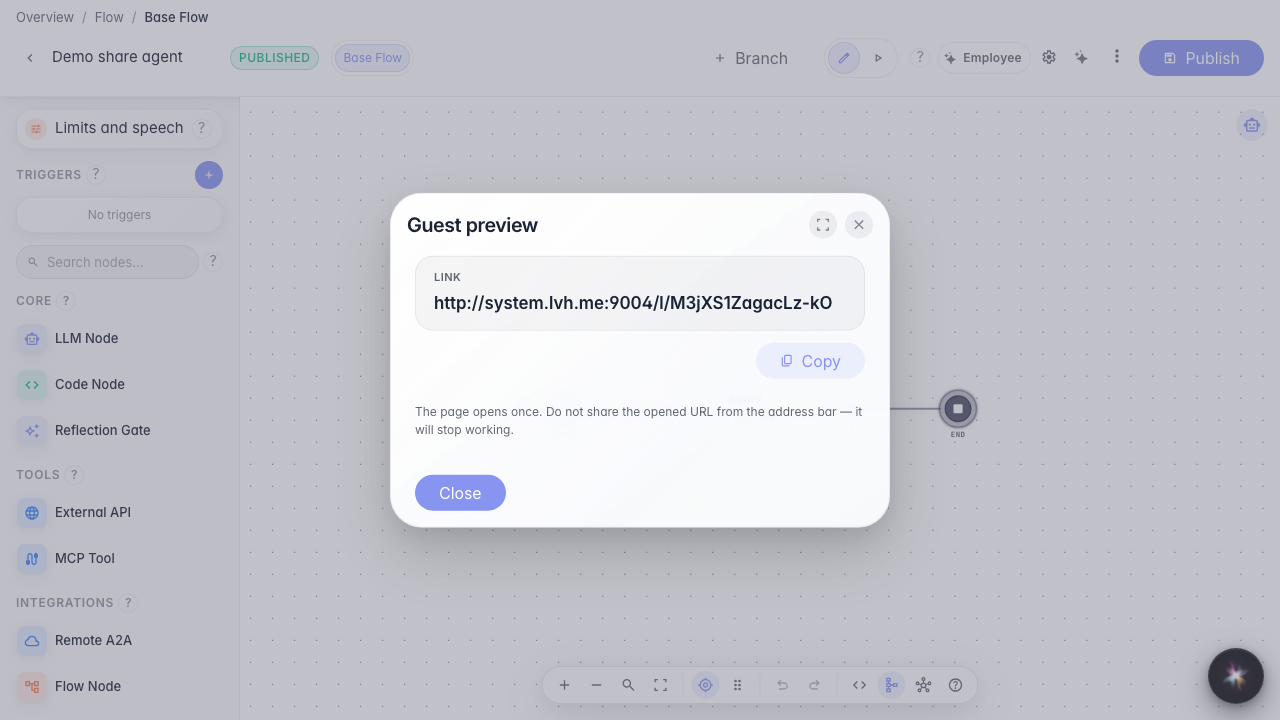
Share an agent demo link
What for: this guide helps you show an agent to a colleague or stakeholder without account access.
Problems it solves: it is unclear how to quickly grant guest chat access and limit the number of messages.
Result: a guest link to the current agent demo chat is created.
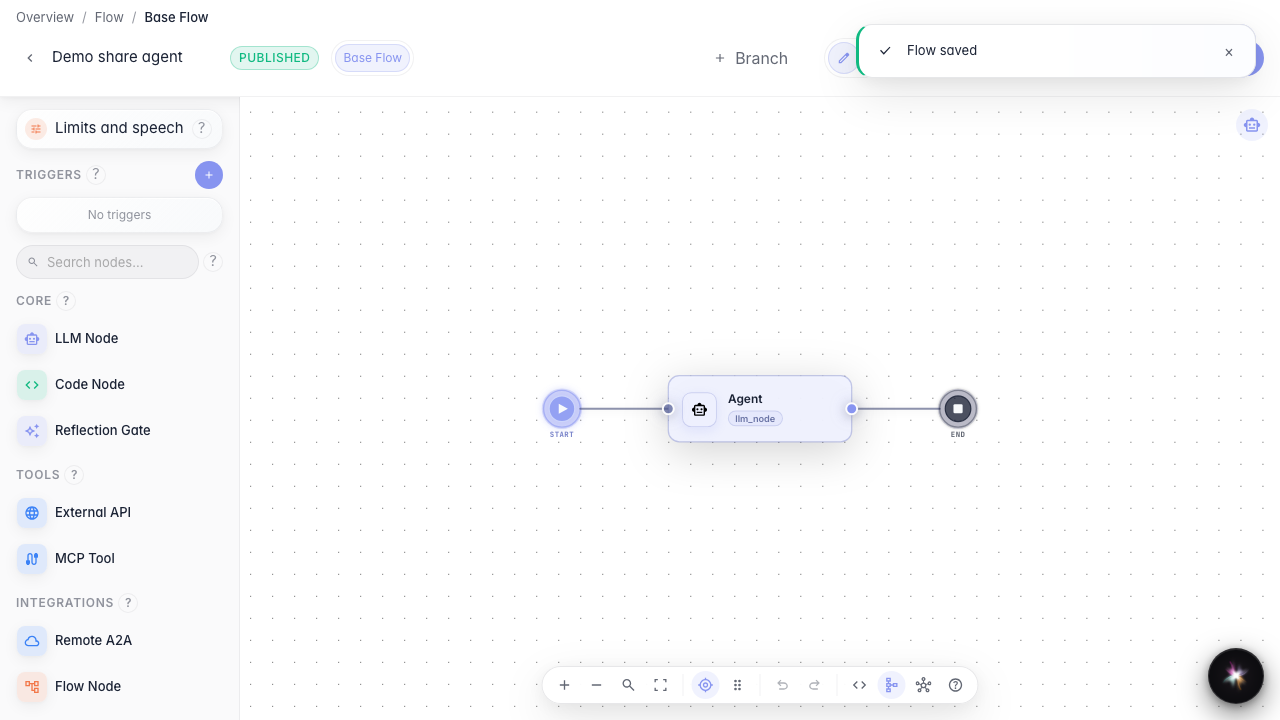
Step 1. Open the published agent editor
Publish the agent first so the guest link points to the current graph and settings.
Step 2. Open guest preview
In the editor menu, choose Guest preview. Here you set a guest message limit and create a one-time chat link.
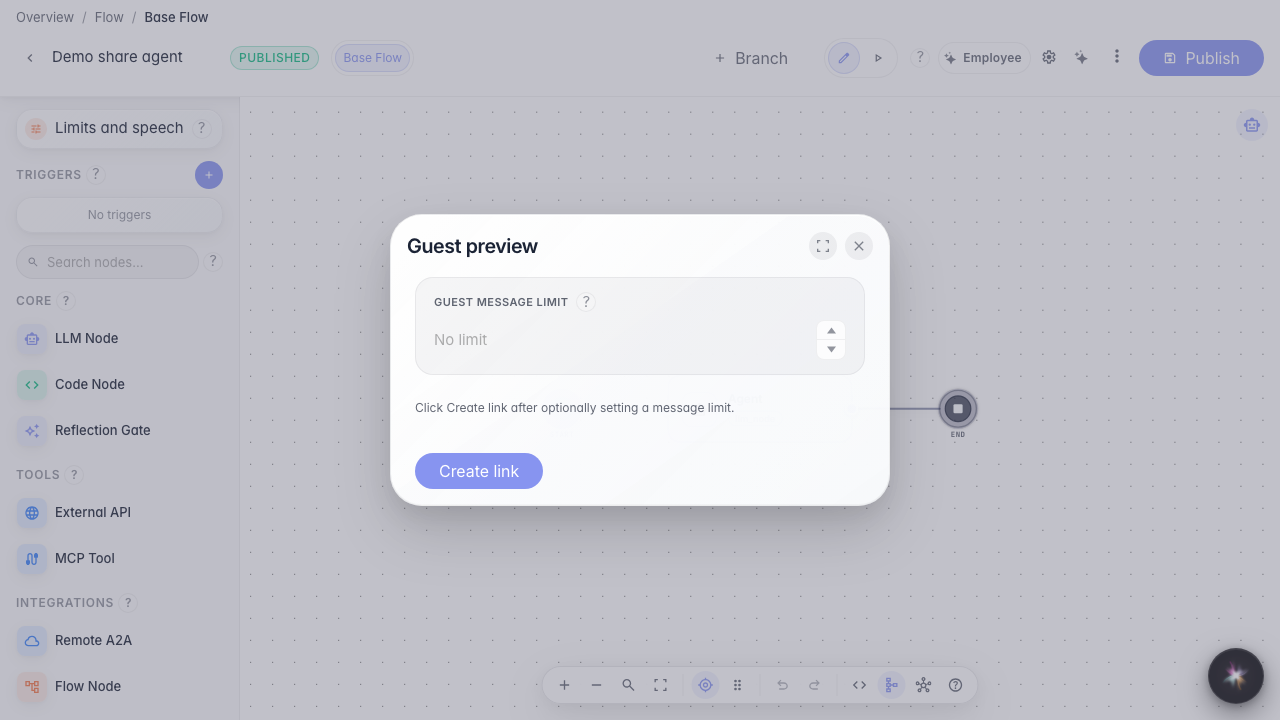
Step 3. Set the guest message limit
Set how many messages a guest may send via the link — for example 5. This limits the demo chat without granting full account access.
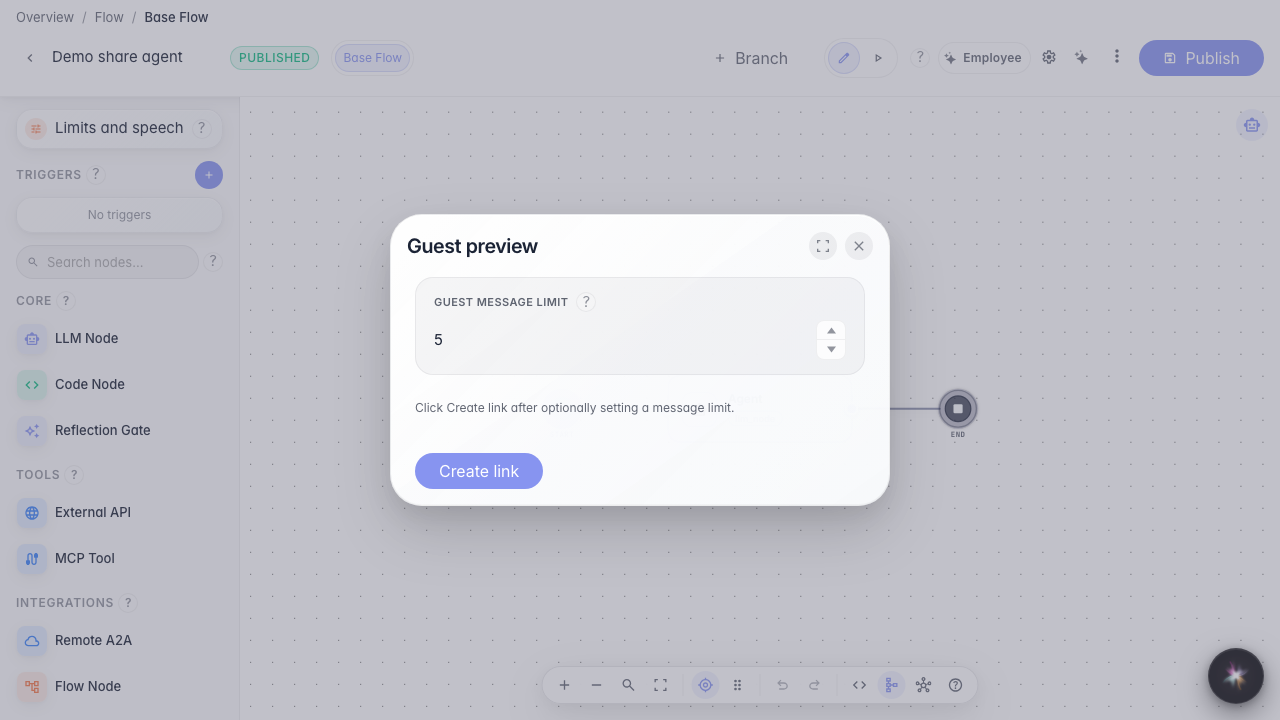
Step 4. Create and copy the guest link
Result demonstration. After creation, a ready link appears on screen — you can send it to a guest to try the agent.
Summary. You can now issue a guest demo link with a message limit directly from the editor.