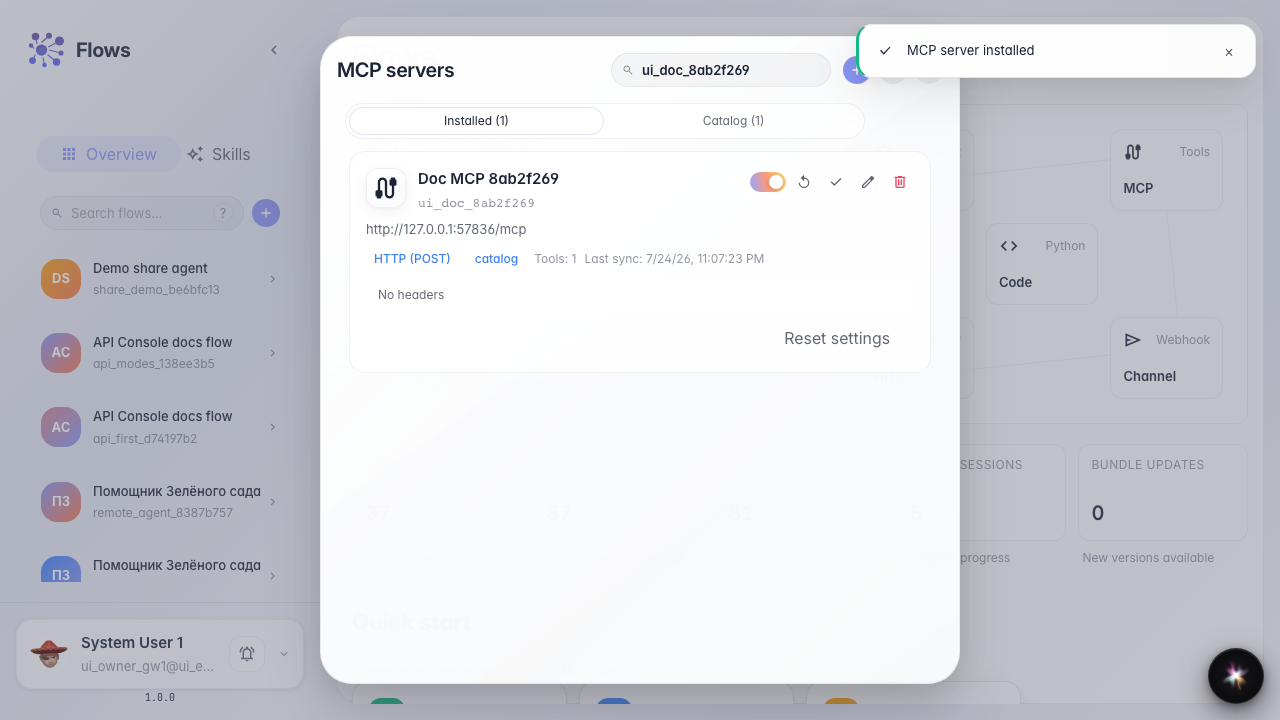
Manage company MCP servers
What for: this guide helps you add an MCP server to the company and verify its tools.
Problems it solves: it is unclear where shared MCP servers live and how to install one from the catalog.
Result: the MCP server is installed, synced, and ready for agents.
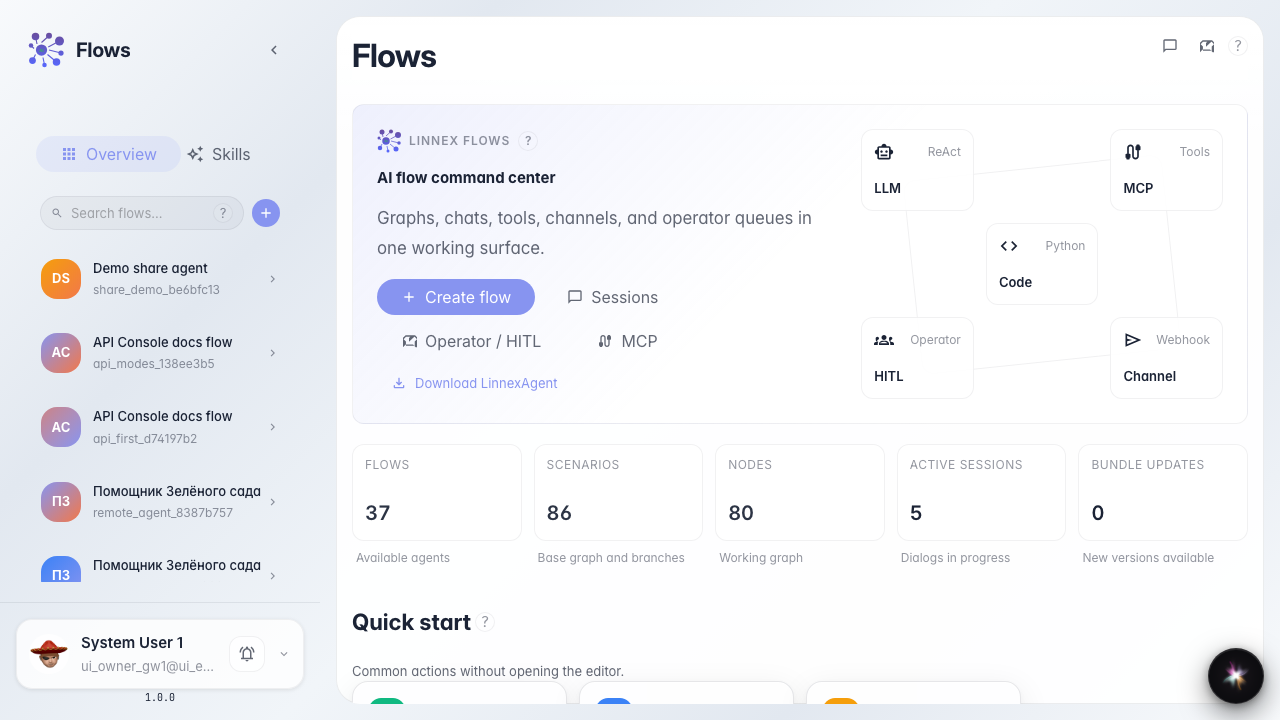
Step 1. Open the Flows home page
On the Flows home page, the company connections block includes MCP to manage servers and the tools catalog.
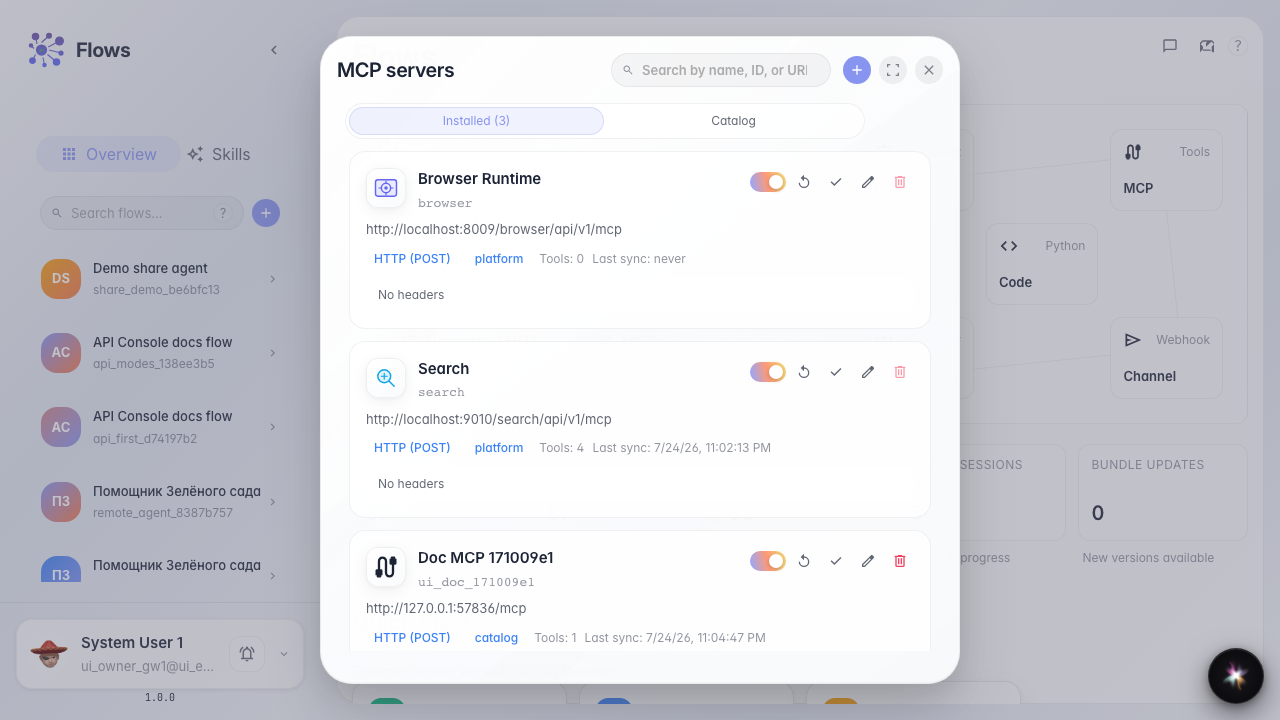
Step 2. Open MCP server management
The modal shows connected company servers and a catalog tab. Here you add HTTP/SSE servers and install ready-made entries.
Step 3. Install a server from the catalog
Find the server in the catalog and click Install. After sync, tools appear in the connected servers list.
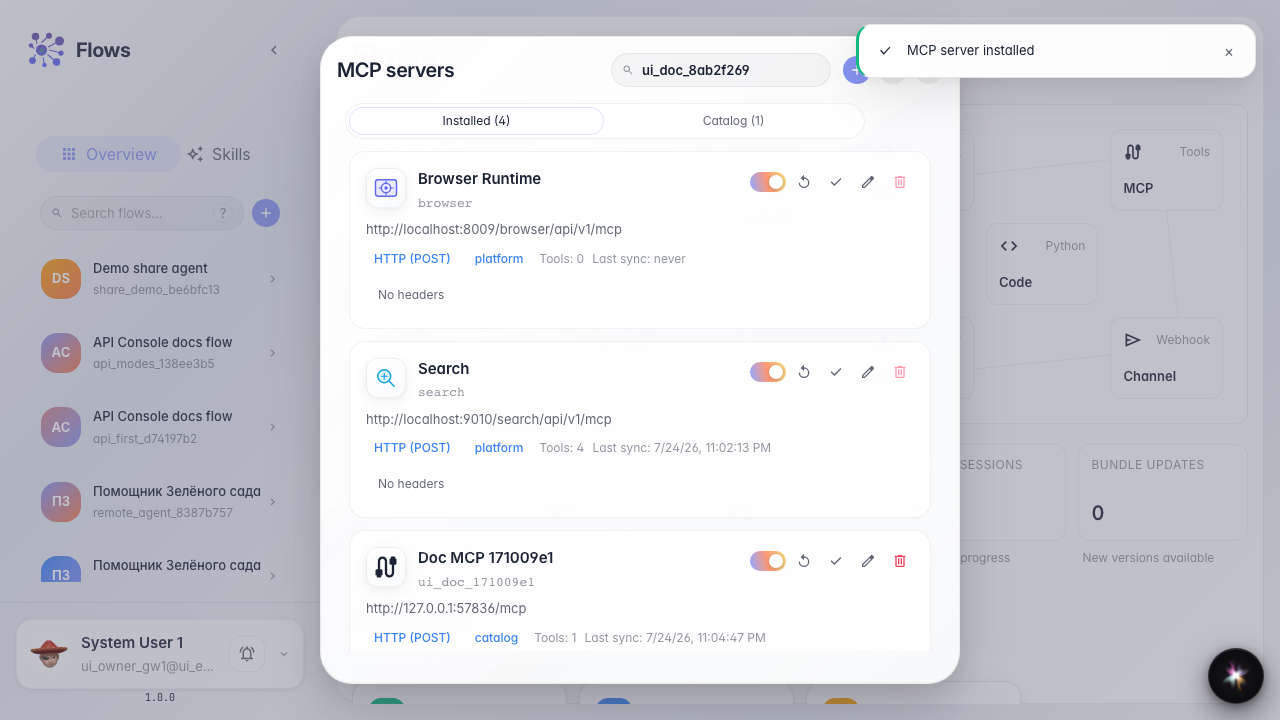
Step 4. Verify the connected server
Result demonstration. The server appears among connected entries — MCP tools are available to company agents.
Summary. You can now open MCP management, install a server from the catalog, and prepare it for use.