Operator wait in the on-site widget
What for: this guide shows how a customer on the store site sees operator wait in the same widget as regular agent chat.
Problems it solves: a disputed return from an external site must not look like a broken chat — they need a clear banner and a locked input in single-reply mode.
Result: the embed widget shows the waiting banner and a read-only composer.
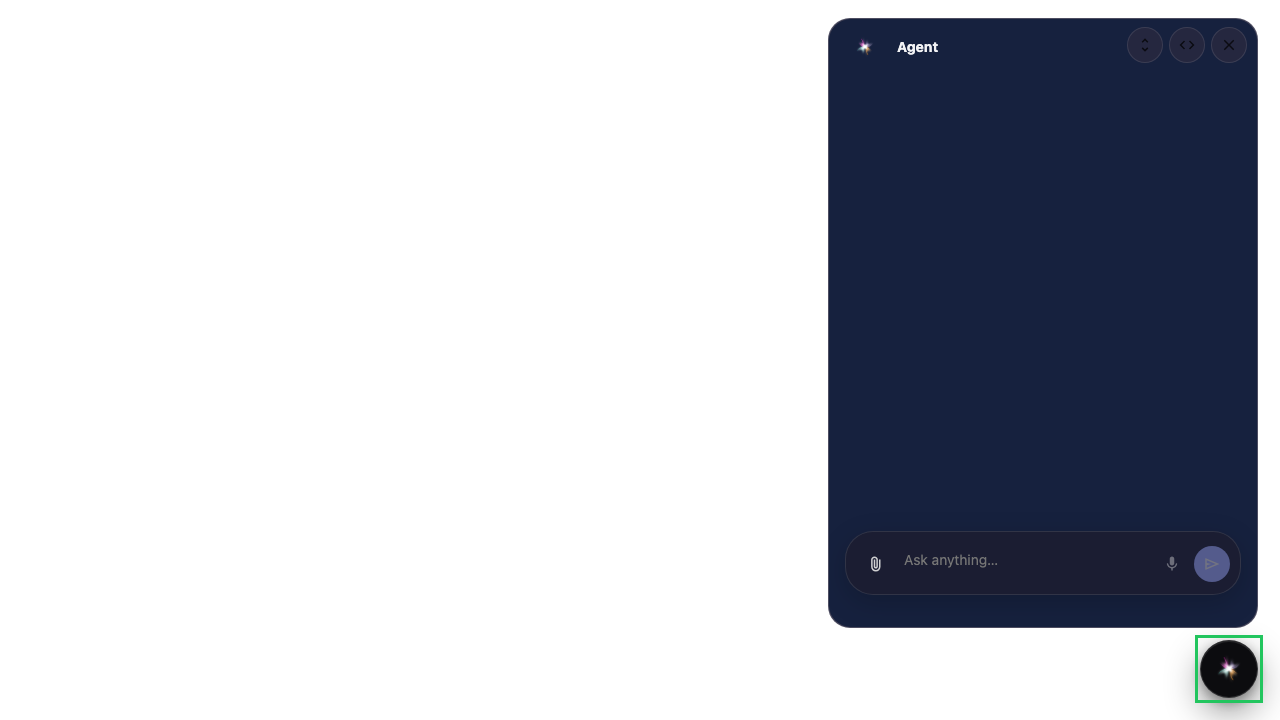
Step 1. Open the chat widget on the site
On the store page click the widget button. The same agent chat as in Flows opens, embedded on the site.
Step 2. Describe the disputed return
Write that you need an operator for a return without a receipt. The agent routes the case to the support queue.
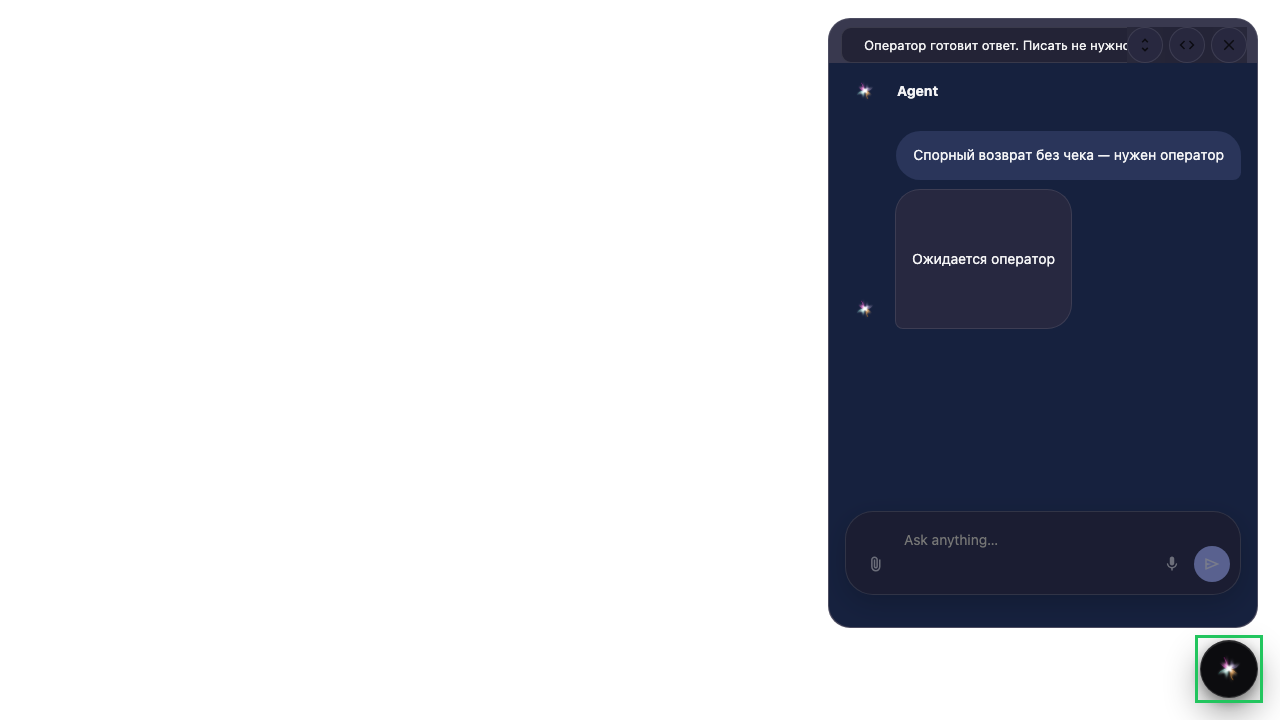
Step 3. Wait for the waiting banner
The widget shows a banner that an operator has the request. This is the same signal as in the Flows chat.
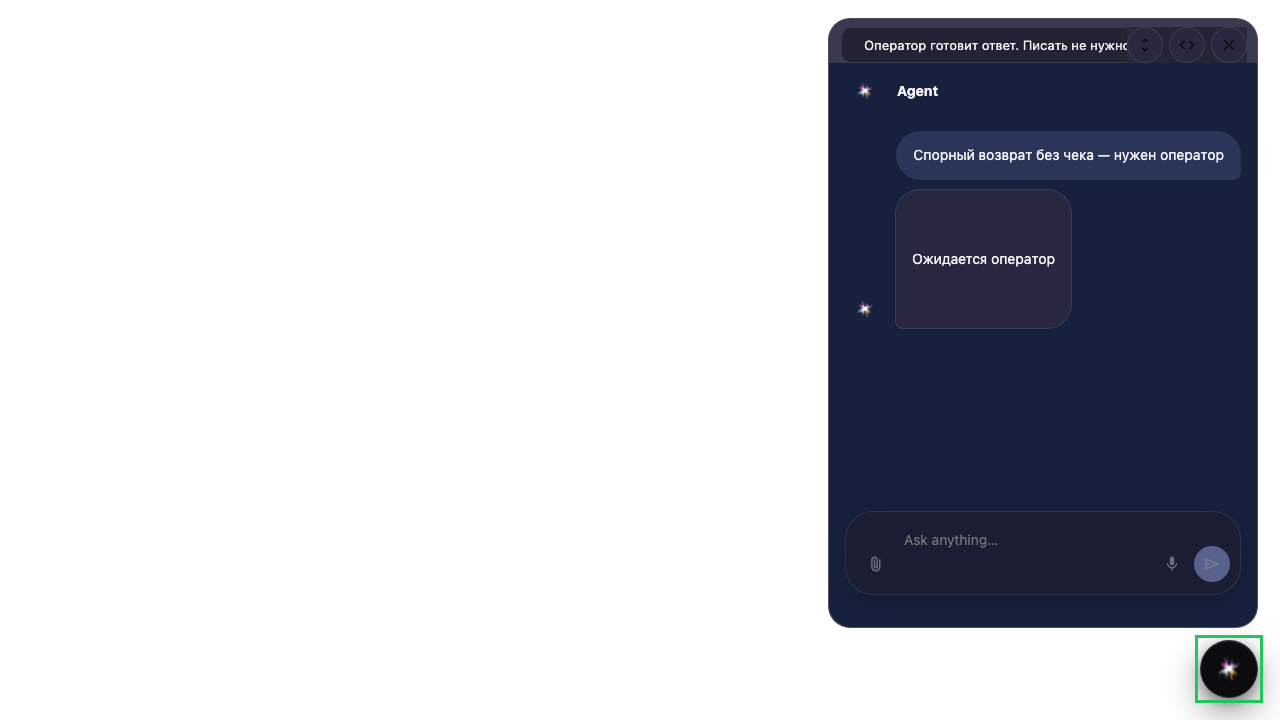
Step 4. Confirm the input is read-only
Result demonstration. In single-reply the customer cannot send another message from the widget — the dialog waits for the operator.
Summary. On the store site HITL looks the same as in the product: a waiting banner and a locked composer.
