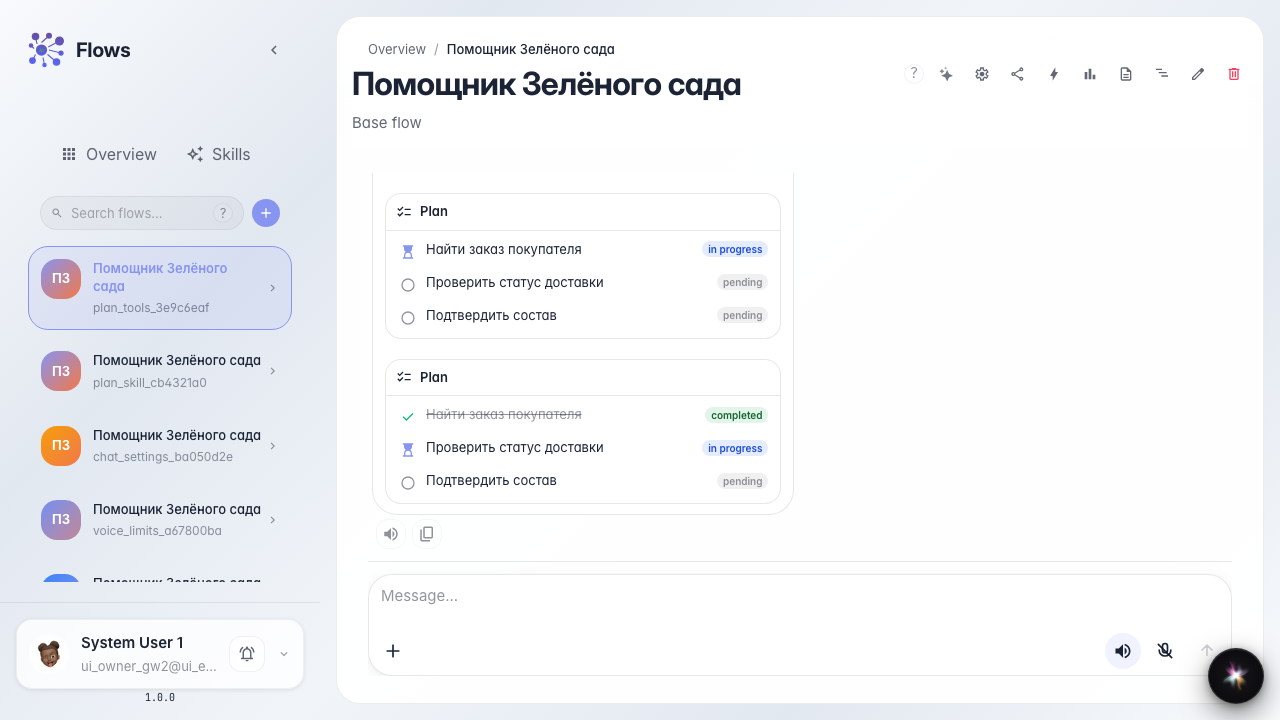
Agent step plan via tools
What for: this guide shows how to attach plan tools by hand when a Skill is not needed or not available.
Problems it solves: you only need a chat checklist without a Skill procedure — write and read plan tools are enough.
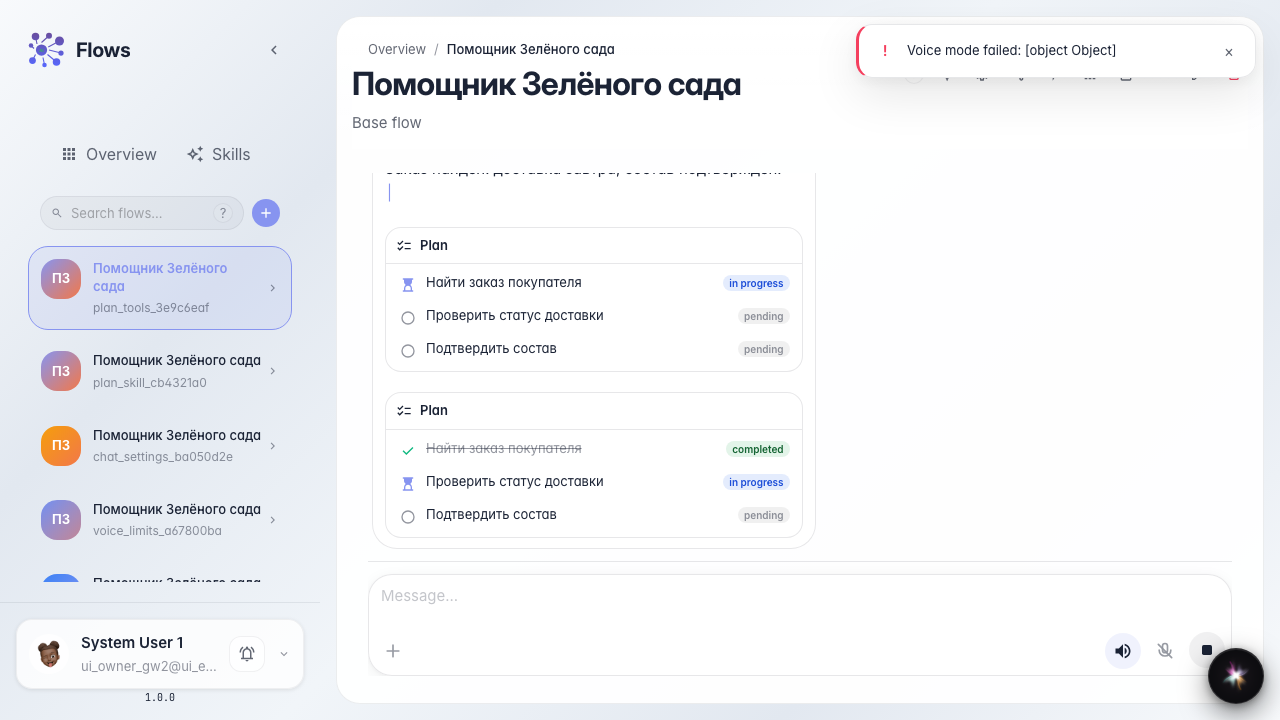
Result: the Green Garden Assistant chat shows the same checklist with completed steps struck through.
Step 1. Create an agent from a template
On the Flows home start creating an agent, pick the plain template, and name it Green Garden Assistant. You get an answer node ready for a step checklist setup.

Step 2. Open Studio in Tools mode
In Studio open Skills and tools and choose Tools. Here you add library tools without a Skill.
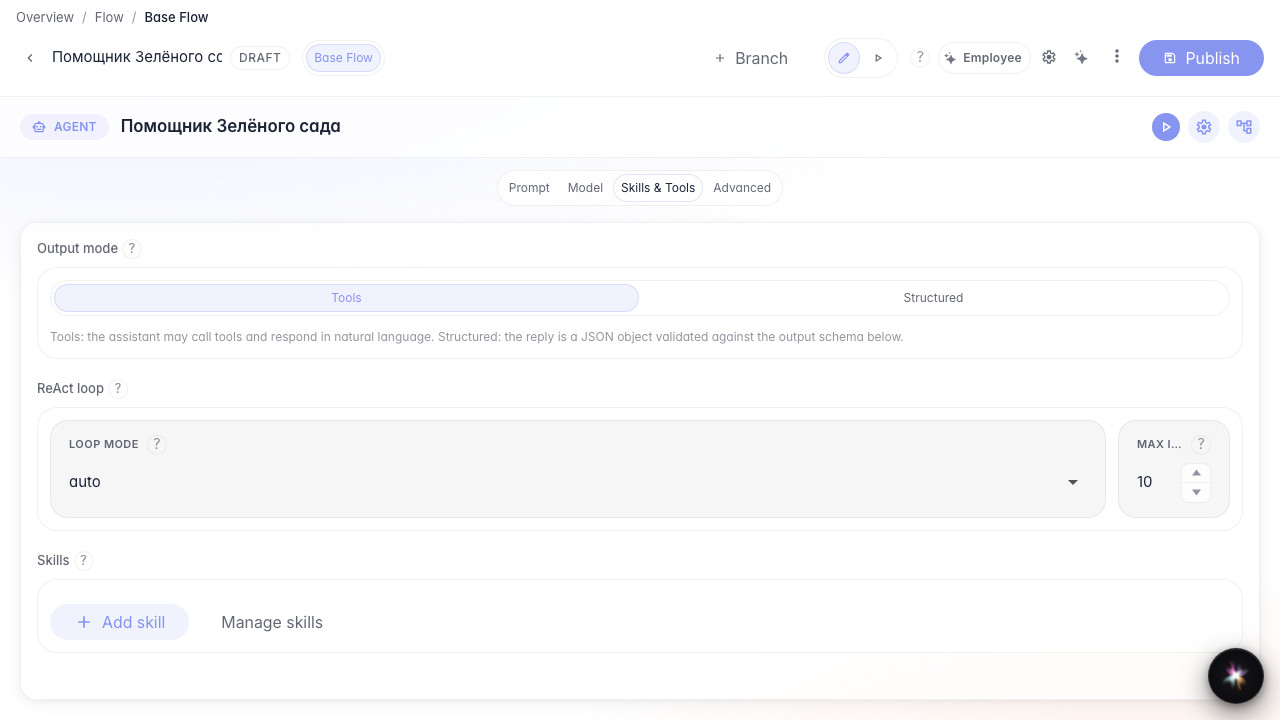
Step 3. Add plan tools from the library
Click From library and add agent_plan_write and agent_plan_get. The first writes the full step checklist; the second reads the current plan. Both appear as chips on the node.
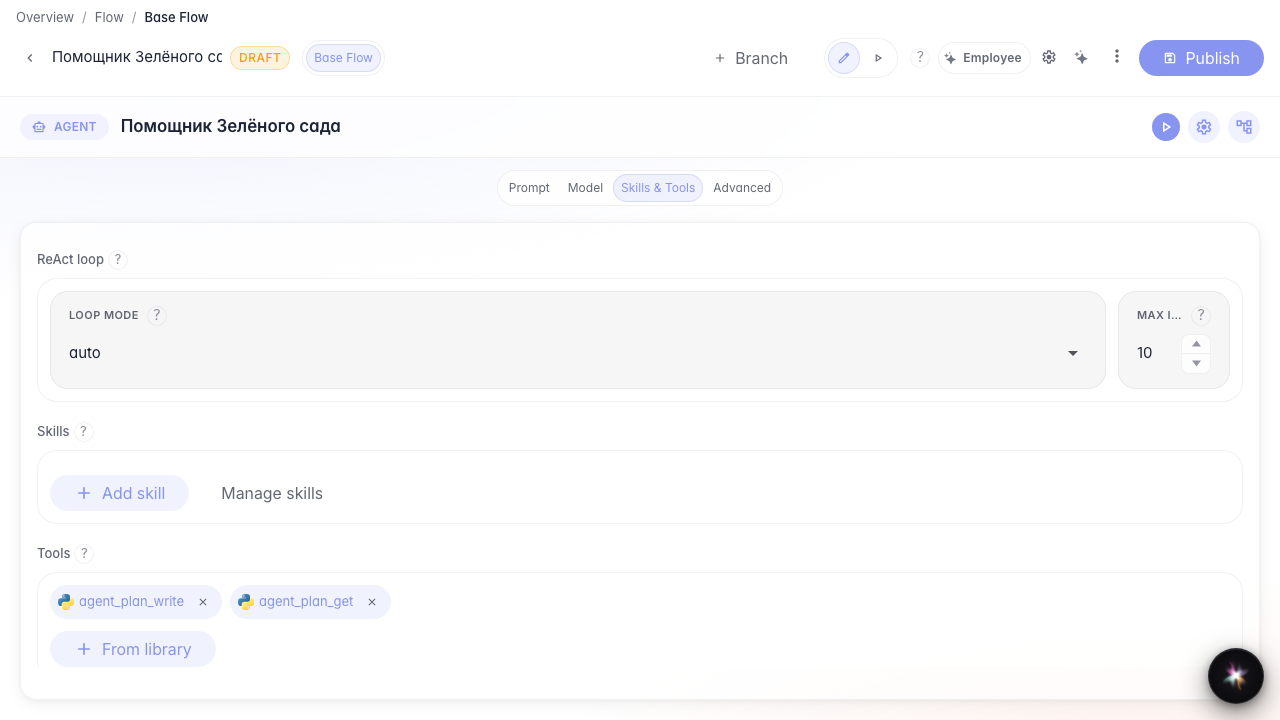
Step 4. Publish the agent and open chat
Publish the settings and open the assistant chat. Next the same multi-step customer request — the plan appears without a Skill.
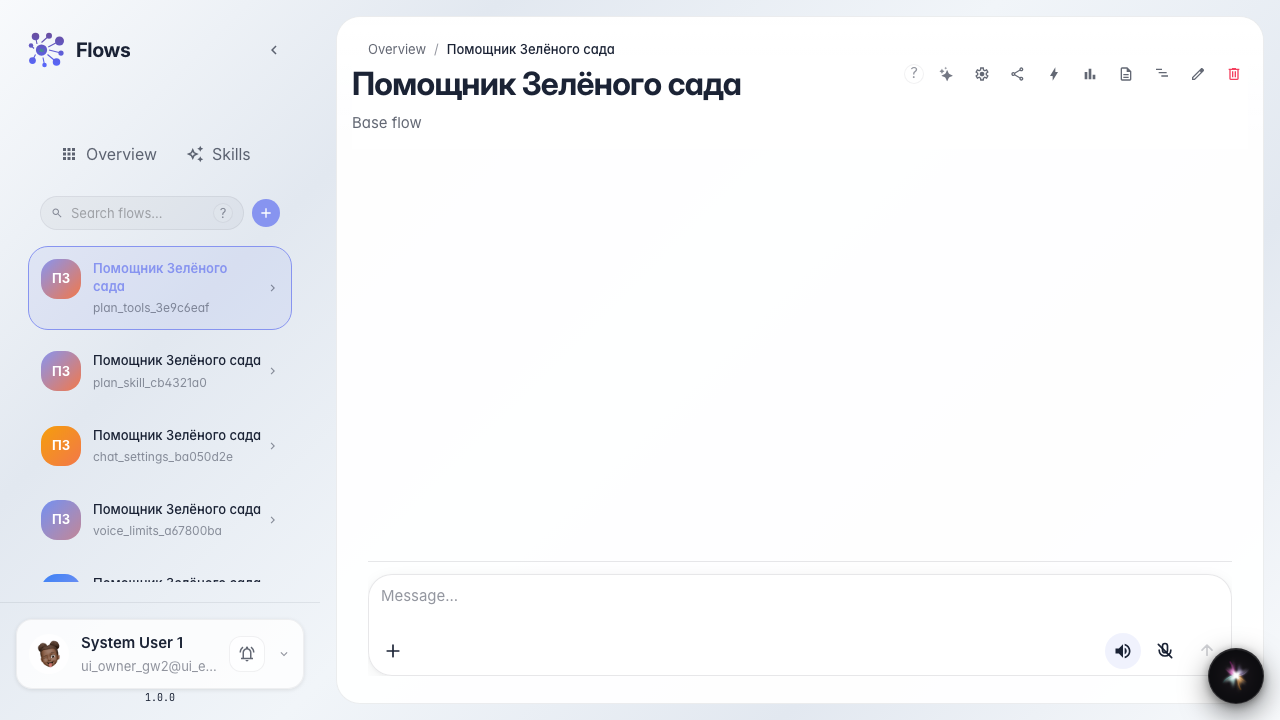
Step 5. Send a multi-step request and see the checklist
Send a request with several actions. The agent calls the plan tools, and a step checklist appears in the feed.
Step 6. Check plan progress and the reply
Result demonstration. Find the customer order is struck through, Check delivery status is current; the agent reply is next to it.
Summary. You can enable a step plan via library tools and follow progress in chat.